

Help for professors
Completion requirements
Add Activities to a Course Page
Add Glossary to Course Page
The Glossary activity allows users to create a list of terms
and definitions, as in a dictionary, that course participants can search
or browse.
Add Glossary
- On your course page, click Turn editing on (top right). Editing icons and links will appear.
- Locate the Section of your course page where you will add the activity.
- In the Section, click + Add an activity or resource. The Add an activity or resource chooser will open.
- In the Add an activity or resource chooser, select Glossary.
- Click Add. The Adding a new Glossary page will open.
- On the Adding a new Glossary page, in the Name field, enter a title. The name you enter will display as the link to the page on your course page.
- Click Save and display to add new entry .
- Click Add a new entry (at top left).
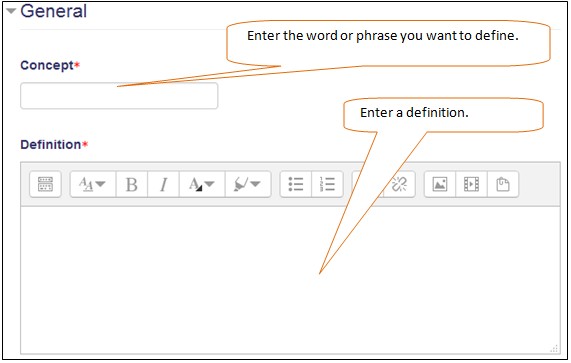
- Click Save changes to add the word to the Glossary.