

Help for professors
Completion requirements
Add Activities to a Course Page
Add a new question to quiz
- On your course page, click the Quiz name. The Quiz summary page will open.
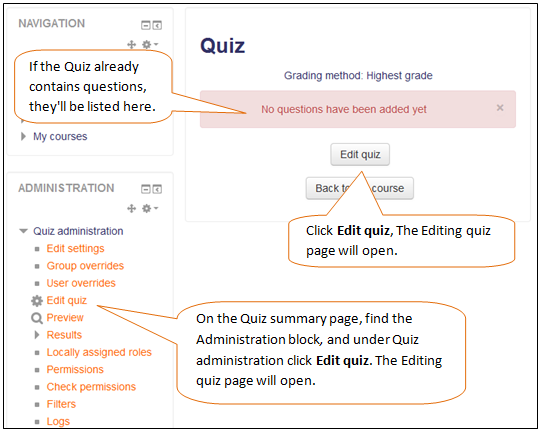
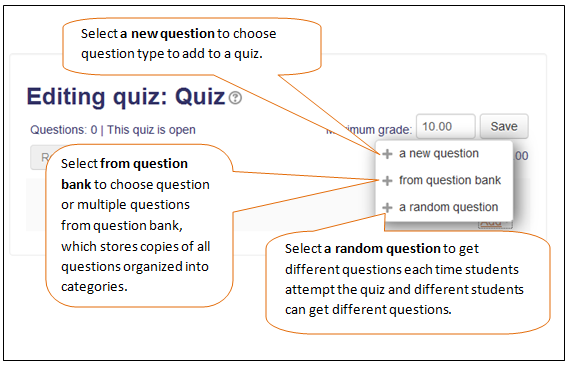
- Click Add (at far right, top or bottom) and from the drop-down menu, select + a new question. The Choose a question type to add pop-up opens.
- In the Choose a question type to add pop-up,
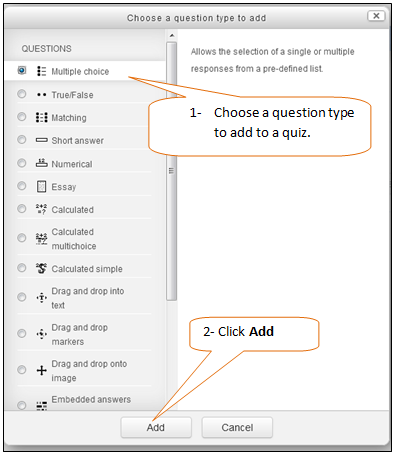
The Adding a question page will open.
Note: A description of each question type is available in the right column of the Adding a question window. The description appears automatically once you choose the question type. - On the Adding a question page, if you are organizing questions in categories, for Save in category, select a category from the drop-down (by default, questions are added to the Default for Course category).
- Enter a Question name (students do not see) and Question text (students do see),Configure the question according to the question type.
- Click Save changes. You will be returned to the Editing quiz page and the new question will be listed.
- Preview the question click the Preview icon . The question will open in a pop-up window.